
How to export a GEDCOM file from Findmypast
Official help checked . Menus can change. These instructions are based on official help, not a tested account export.
Download your Findmypast family tree through its tree list, identify the Export tree control and prepare the local GEDCOM for a printable chart.
To export a GEDCOM file from Findmypast, open the list of your family trees and choose the Export tree icon beside the tree you want. Downloading the data is separate from printing the on-screen chart.
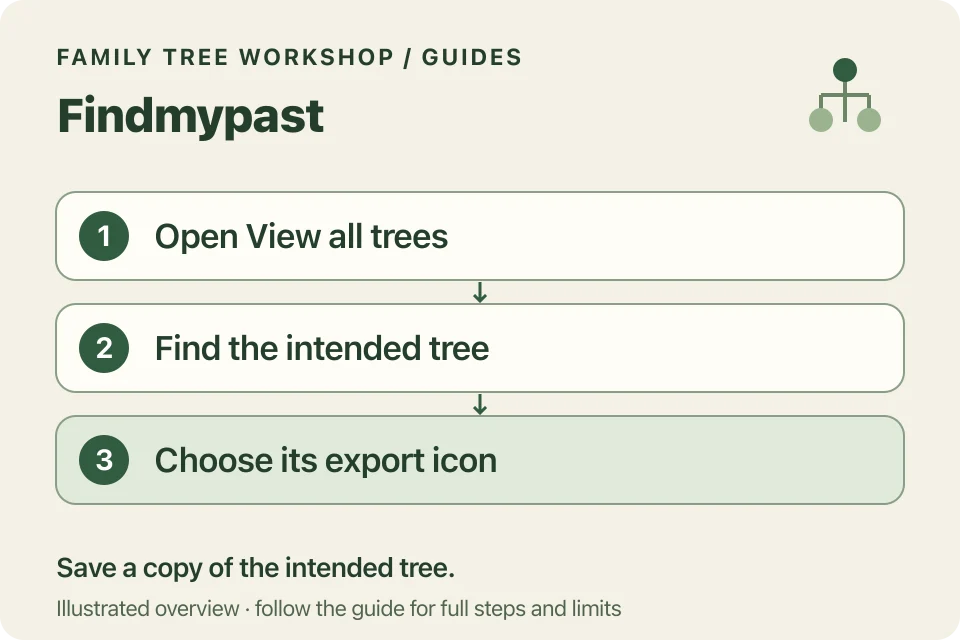
Where is the export control?
Findmypast’s help directs users to My Family Tree at the top of the website, followed by the view showing all trees. The export icons sit beside the named trees in that list.
- Sign in to the account holding your tree.
- Open the family-tree menu and choose the option to view all trees.
- Find the tree you want by name.
- Identify Export tree. On a computer, hovering over an icon can reveal its name.
- Select the control and save the resulting file on your device.
If you are looking at an individual record rather than the tree list, return to that list first. Exporting makes a copy; it doesn’t delete or replace your tree.
What if the icons are unclear on a phone?
Compare the screen with the illustration in Findmypast’s help article below. A desktop view or computer may make a compact control easier to identify. If your screen looks different, the linked help article is a good place to start.
Does the GEDCOM replace your original research?
Keep your research database and important images alongside the download. A GEDCOM exchange file and a printable tree serve different purposes. Do not assume either preserves every provider-specific field or attachment without checking.
Check a few people and relationships after importing. Dates or relationships that were uncertain in the original tree are still uncertain in the exported file.
How do you make a PDF from the file?
Open it in the GEDCOM to PDF converter, select a starting person and begin with a small chart. Choose ancestors or descendants, then adjust generations and layout.
The converter reads the main person, family and event details in UTF-8 GEDCOM 5.5.1 and 7 files, within its file-size and record limits. If your file won’t open, start with the error message and the export settings in your genealogy software. The printing guide covers readable tiles and privacy checks.